Tabs & panes
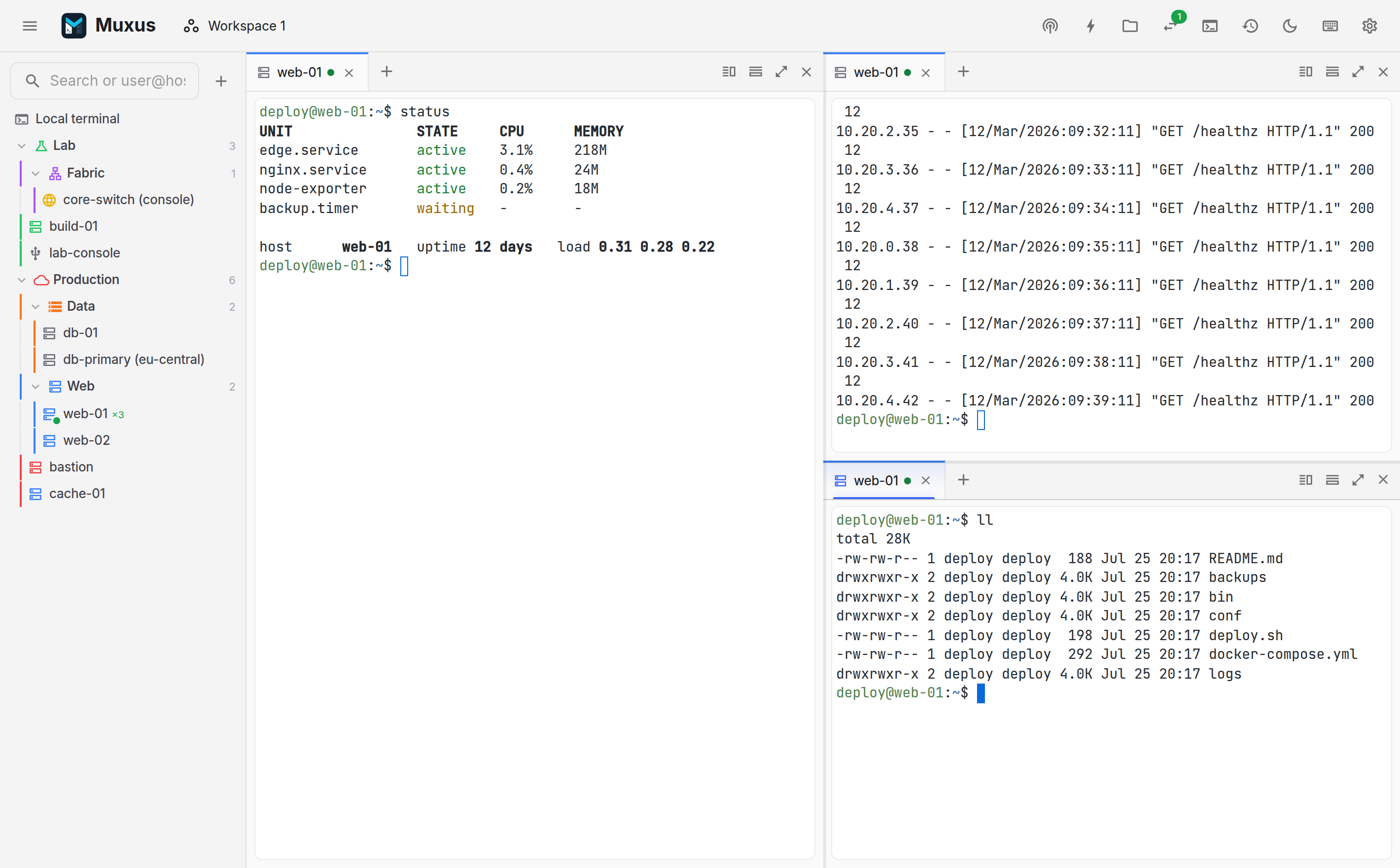
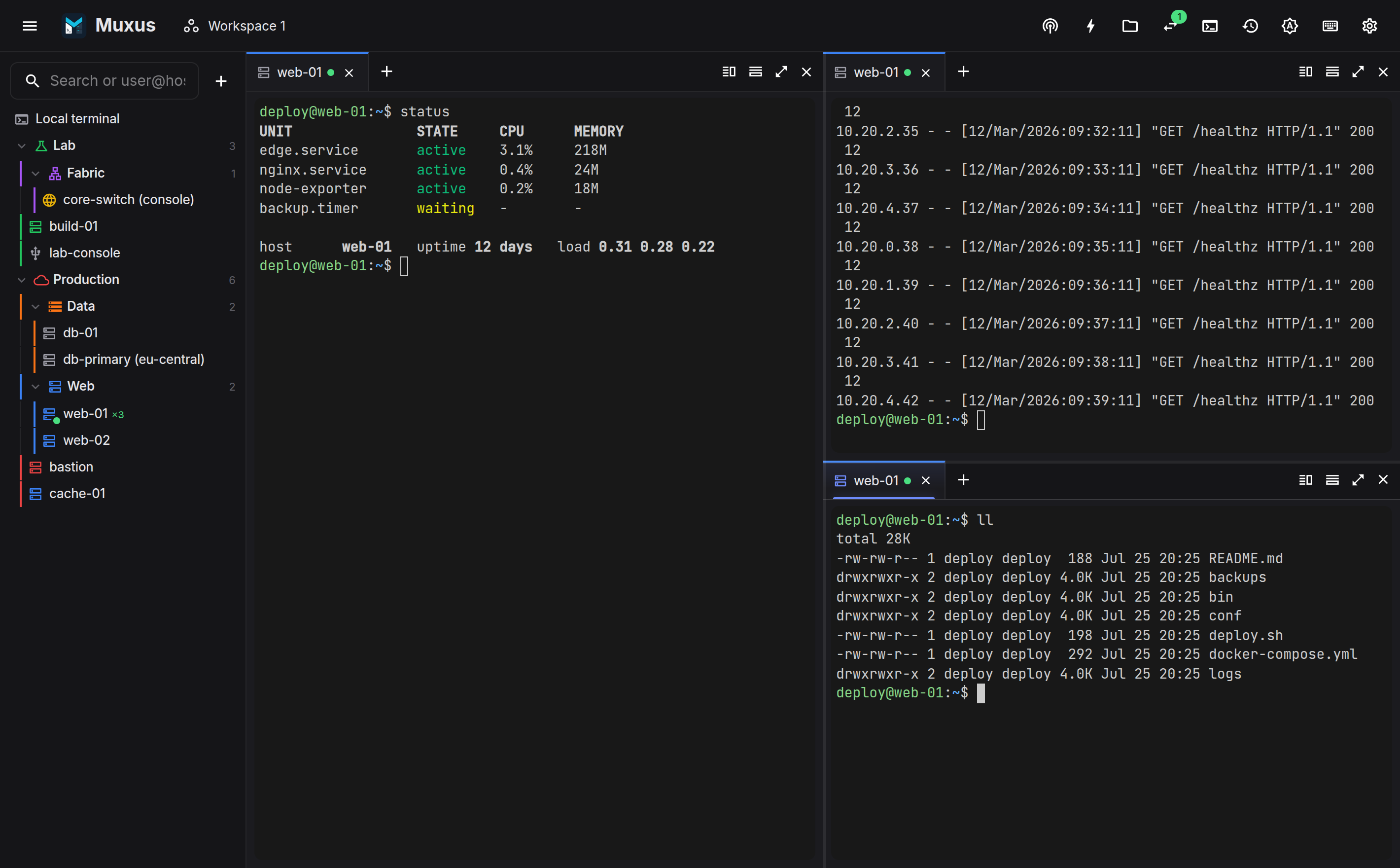
Panes split in any direction, tabs move between them, and layout changes do not disturb a running session.
Splitting
Ctrl+Shift+Left / Ctrl+Shift+Right / Ctrl+Shift+Up / Ctrl+Shift+Down splits the focused pane toward that side. The new pane continues the current session: the SSH connection is reused, so there is no second login and no second 2FA prompt. This is configurable in Settings → Keyboard; with it off, the new pane asks what to start. Serial consoles always ask, because a serial port supports one reader.
Alt+Shift+= and Alt+Shift+- are alternative chords for the two most common splits, and the tab strip has split buttons for the mouse.
Moving around
| Chord | What happens |
|---|---|
| Alt+Left / Alt+Right / Alt+Up / Alt+Down (Cmd+Option and an arrow on macOS) | Focus the pane in that direction, geometrically |
| Ctrl+Shift+O | Focus the next pane |
| Alt+Shift+Left … | Send the current tab to the neighbouring pane, splitting one off when there is none |
| Ctrl+Shift+Z | Zoom the focused pane to the whole canvas, and back |
| Ctrl+Shift+. / Ctrl+Shift+, | Grow / shrink the focused pane |
| Ctrl+Shift+X | Close the pane |
Focus keys fall through to the shell
Alt+Left moves focus only when a pane sits to the left. When there is none, the key is passed to the shell, so Alt+Left still moves a word in readline. On macOS, where Option+Left and Option+Right jump by word in every pane, focus moves with Cmd+Option+Left … instead.
Drag a divider to resize it, double-click it to even the split, or give it focus and use the arrows. Even out panes in the pane menu balances the whole layout.
Tabs
Each pane has a browser-style tab strip. A tab is one session: local shell, SSH, Telnet, serial, a remote desktop, or a remote editor.
- New tab: Ctrl+Shift+T, or the + in the strip.
- Close: Ctrl+Shift+W (Cmd+W on macOS). Not Ctrl+W, which deletes a word in
the shell. With Close the tab when its shell exits under
Settings → Behavior,
exitor Ctrl+D closes the tab too. - Switch: hold Alt to reveal each tab's window-wide number, then use Alt+1 … Alt+9 to activate that exact tab wherever it lives. Settings → Keyboard can keep the numbers visible all the time. ++ctrl+pgup++ / ++ctrl+pgdn++ still cycle within the focused pane.
- Reorder or move: ++ctrl+shift+pgup++ / ++ctrl+shift+pgdn++ reorders in the current strip. Drag a tab to an exact position in this strip, another split, or another Muxus window. A cross-window drop hands off the live terminal and restores its scrollback.
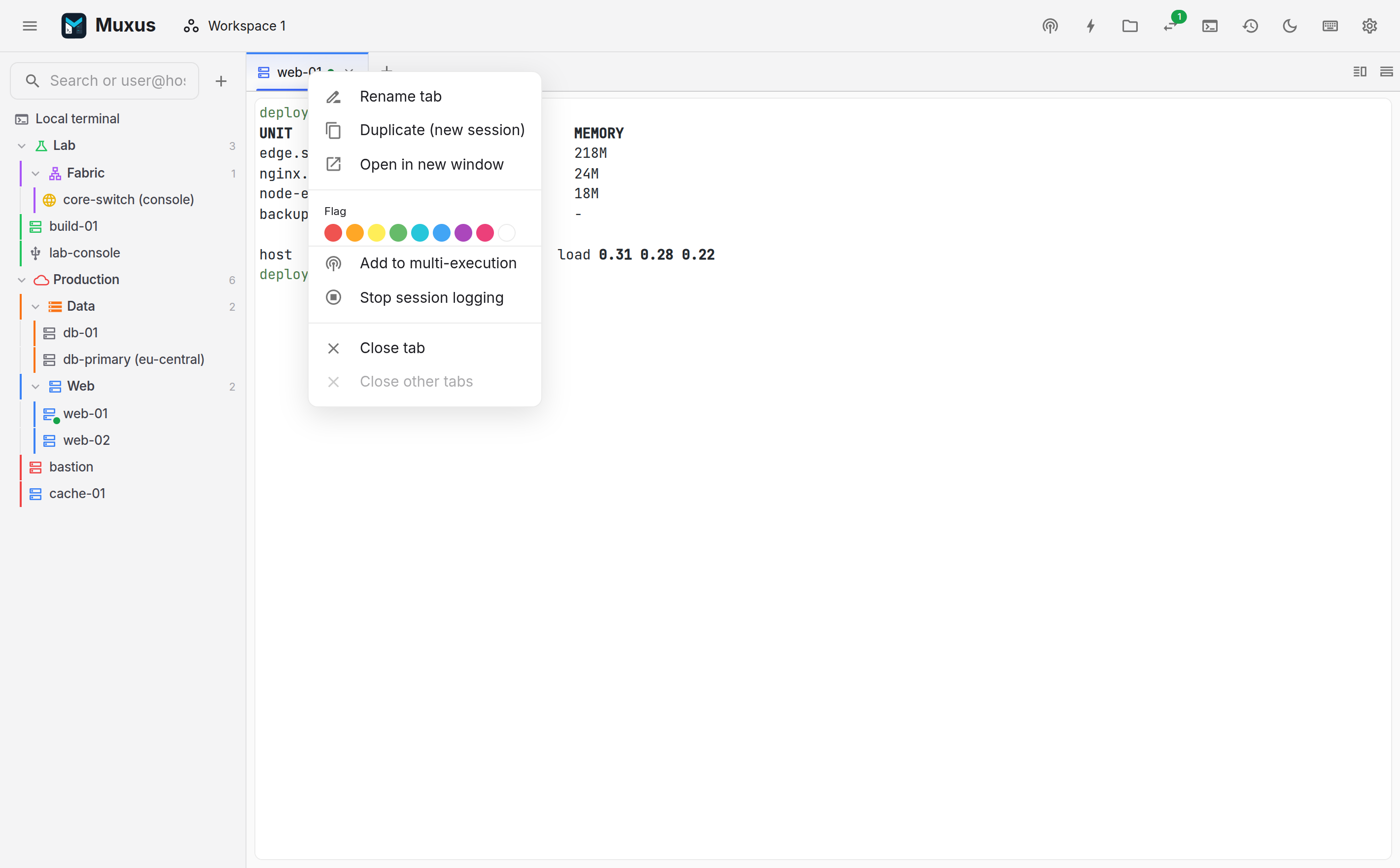
- Pin: choose Pin tab from the right-click menu. Pinned tabs stay at the left of the strip, keep their own drag order, and are preserved by Close other tabs.
- Rename: double-click the title.
- Duplicate: Ctrl+Shift+D opens a second session on the same host.
- Colour flags: assigned from the right-click menu.
- Open in new window: opens the same profile as a fresh session in its own window.
Each tab shows a status dot: amber while connecting, green when connected, red when the transport is gone.
Program status
Programs that report their state with OSC 7501, the Program Status Protocol, mark their tab next to the title. Coding agents and some build and package tools do this:
| Mark | Meaning |
|---|---|
| A blue ring | The program is working; it fills up when the program reports progress |
| An amber question mark | The program is waiting for you: a permission, an answer or a sign-in |
| A green check | The program finished; shown until you switch to the tab |
| A red cross | The program failed; shown until you switch to the tab |
Hover the mark for what the program reported. Working and waiting end at the next shell prompt or when the session ends. When several programs in one tab report, the tab shows the most urgent one. Muxus answers the protocol's support query only while the feature is on; turn it off with Show program status on tabs under Settings → Behavior.
Tab numbers follow depth-first split-tree order: at every split the left or top branch comes before the right or bottom branch, then tabs are numbered left-to-right inside each strip. Splitting, moving, reordering or closing tabs and panes recalculates the sequence immediately. Every tab displays its sequential number; the first nine have default single-digit shortcuts.
Interaction between panes and tabs
- Closing the last tab of a split pane closes the pane.
- Moving a tab toward a direction where no pane exists splits one off.
- Layout changes never remount a terminal, so the shell, scrollback and SSH channel survive every split, close and move.
- Dragging a connected tab between Muxus windows transfers ownership of its running backend session; it does not start a second login.
- Keystrokes typed into a pane that is still connecting are delivered once it is ready.
Default chord selection
Muxus takes as few keys from the shell as possible:
- Ctrl+W deletes a word, and Ctrl+2 … Ctrl+8 send their control characters. Closing is therefore Ctrl+Shift+W, and window-wide tab selection uses Alt+1 … Alt+9.
- Chords follow the character printed on the key cap, so Ctrl+Shift+Z is the key
labelled
Zon QWERTZ and AZERTY. Arrows and keys whose character a modifier mangles use their physical position. - Ctrl++ / Ctrl+- / Ctrl+0 zoom the terminal font only. The interface scale is a preference rather than a chord.
All commands share one keymap. Search it in the quick launcher, or review and rebind it in the keyboard sheet (Ctrl+Shift+/).